Getting started
Version: 1.0.0
Who can access: Anyone with a demo or production account
What this guide covers
How to open Multi-User Account, sign in, and move between the main sections of the app.
Open the app
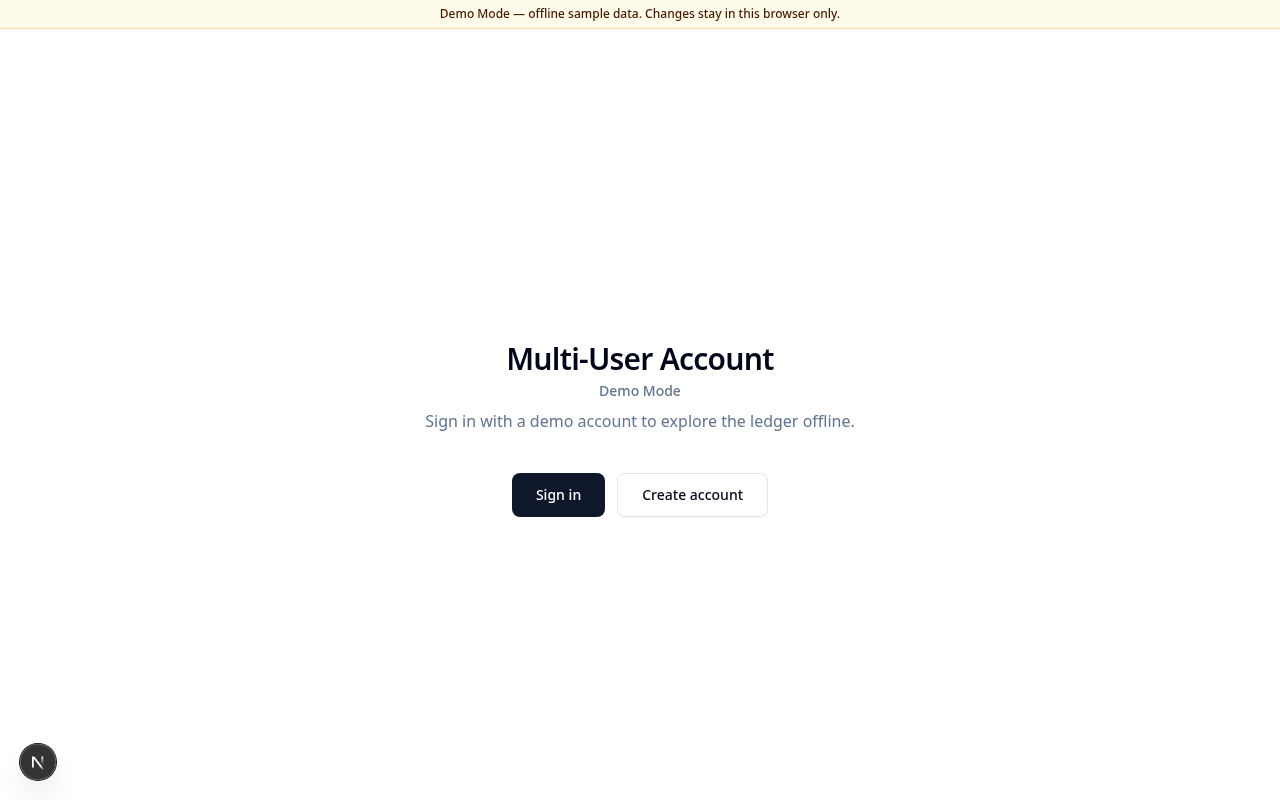
- Open the live demo from the project page, or run Demo Mode locally (see the repository
demo-mode/README.md). - You will see the landing page with Sign in and Create account.
Sign in (Demo Mode)
Demo Mode shows clickable account cards so you can try the app without creating a new account.
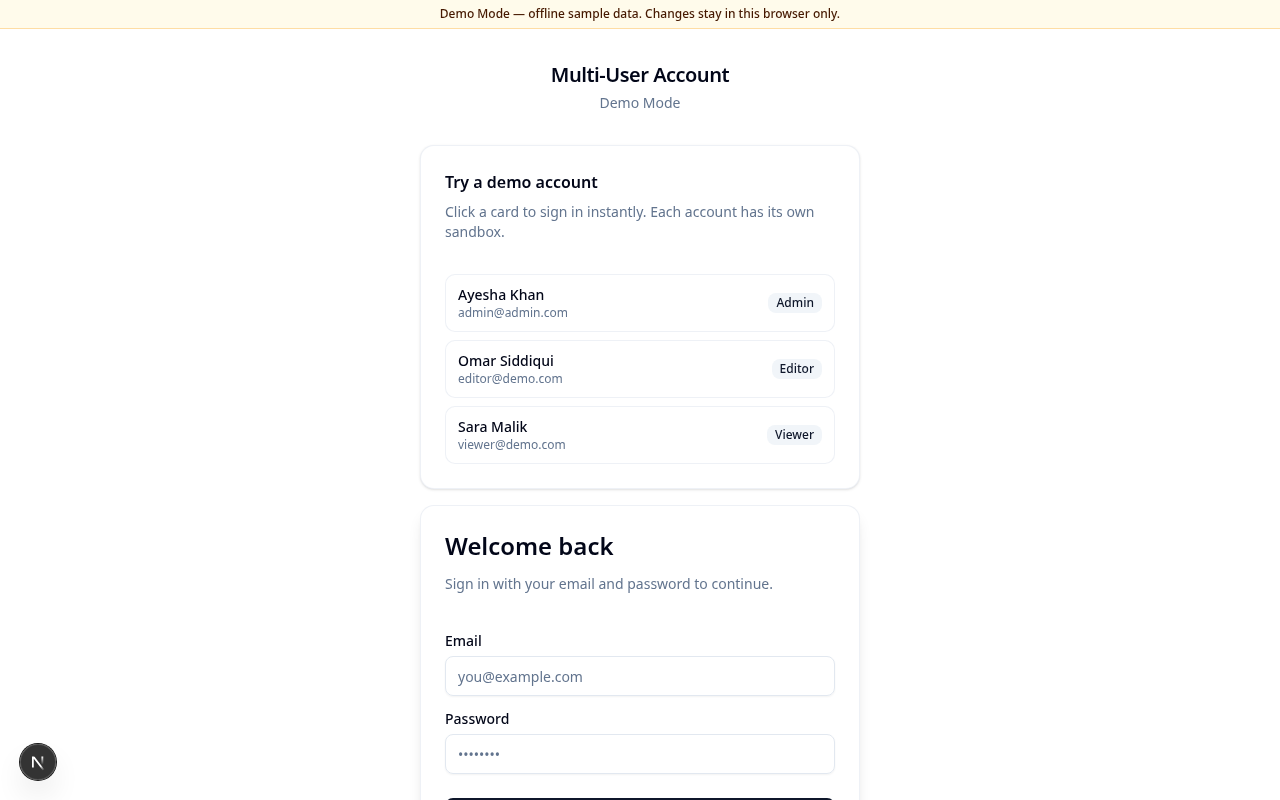
- Open Sign in.
- Click a demo account card (Admin, Editor, or Viewer), or enter the email and password shown on the card and choose Sign in.
- After a successful sign-in you land on Home.
Each demo account uses its own browser sandbox. Changing data in one account does not affect the others.
Create account
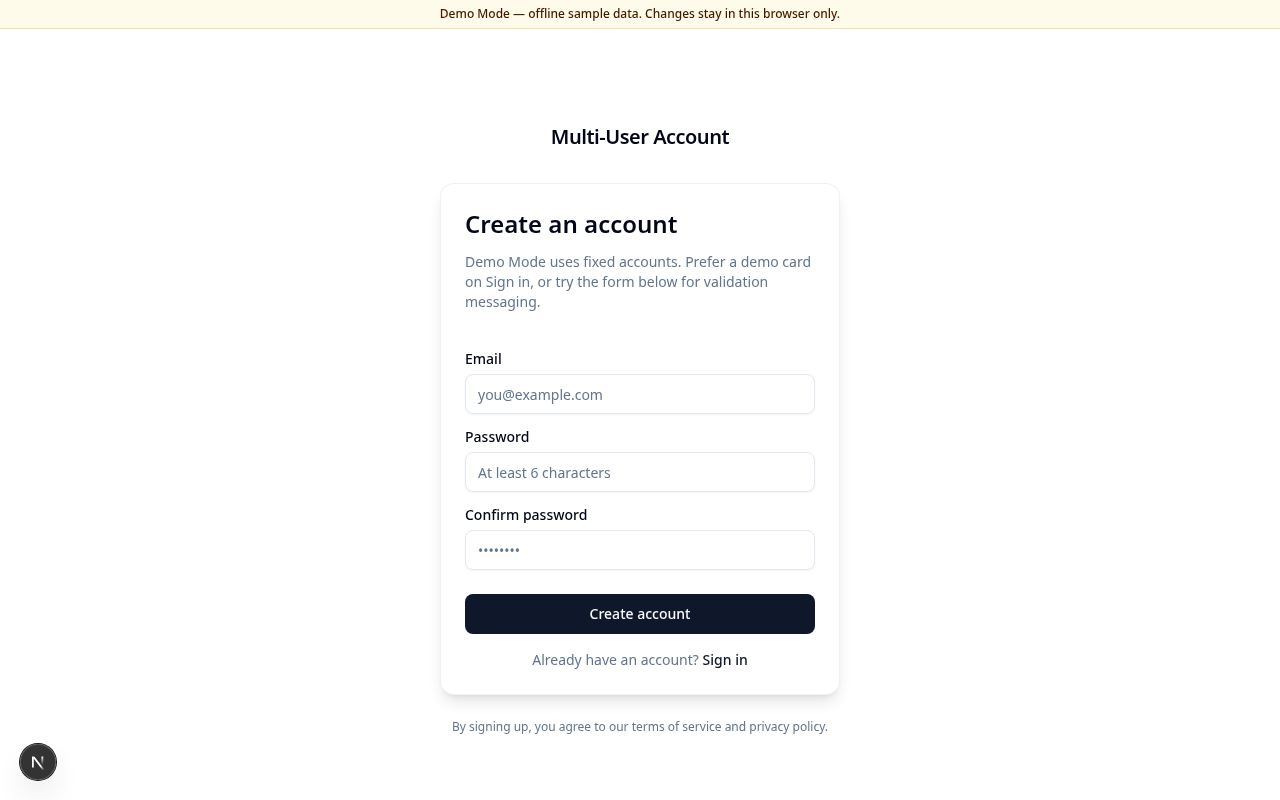
In Demo Mode, new sign-ups are limited — prefer the demo account cards on Sign in. In the production app, use Create account with email and password (at least 6 characters).
Navigate the app
After sign-in:
| Section | Purpose |
|---|---|
| Home | Welcome, balances summary, recent activity |
| Transactions | Add and review credit, debit, and transfer entries |
| Accounts | Manage ledger accounts and balances |
| Categories | Maintain account types and cash types |
| Settings | Profile, email, and password |
On phones, use the bottom navigation. On desktop, use the icon rail on the left.