Closing Stock
Version 1.0.0
Route: /closing-stock
Who can access: anyone who can view Closing Stock. Editors can add and change rows. Viewers can look only. Admins can do all of it.
What this page does
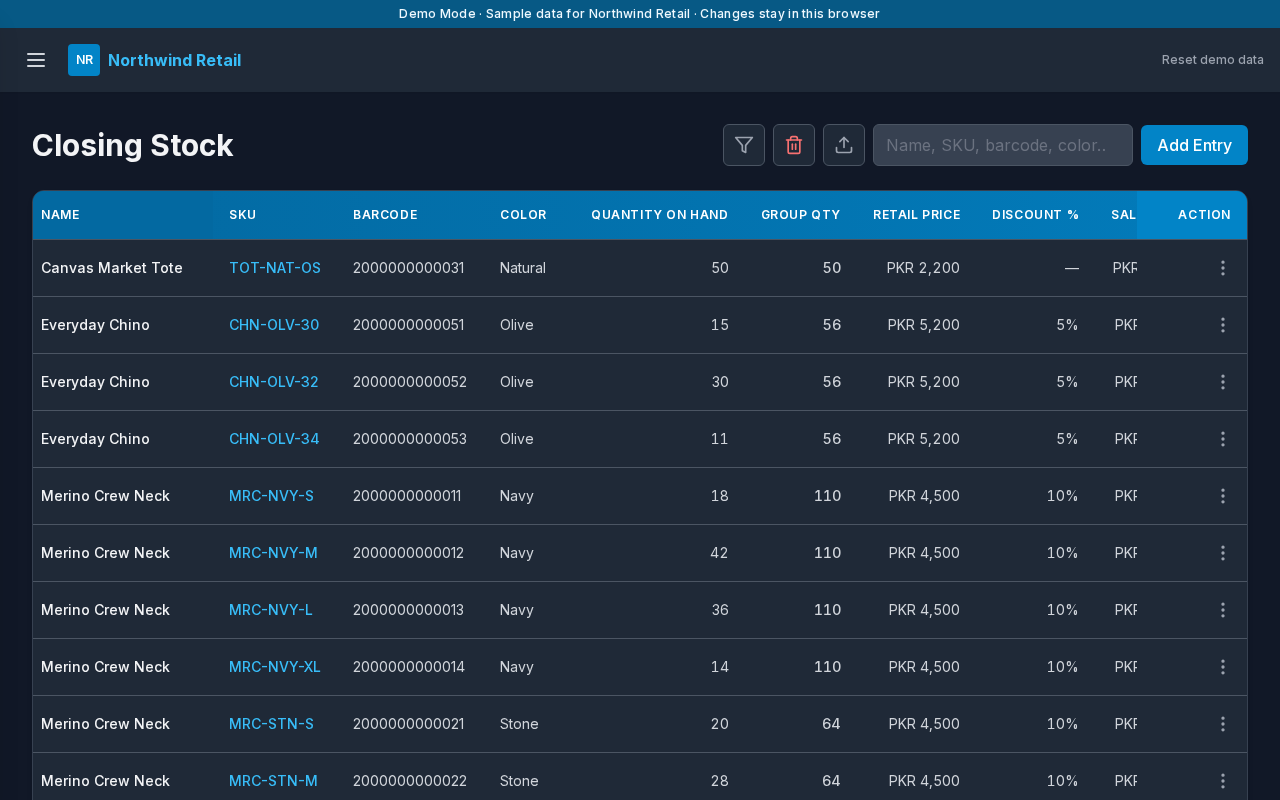
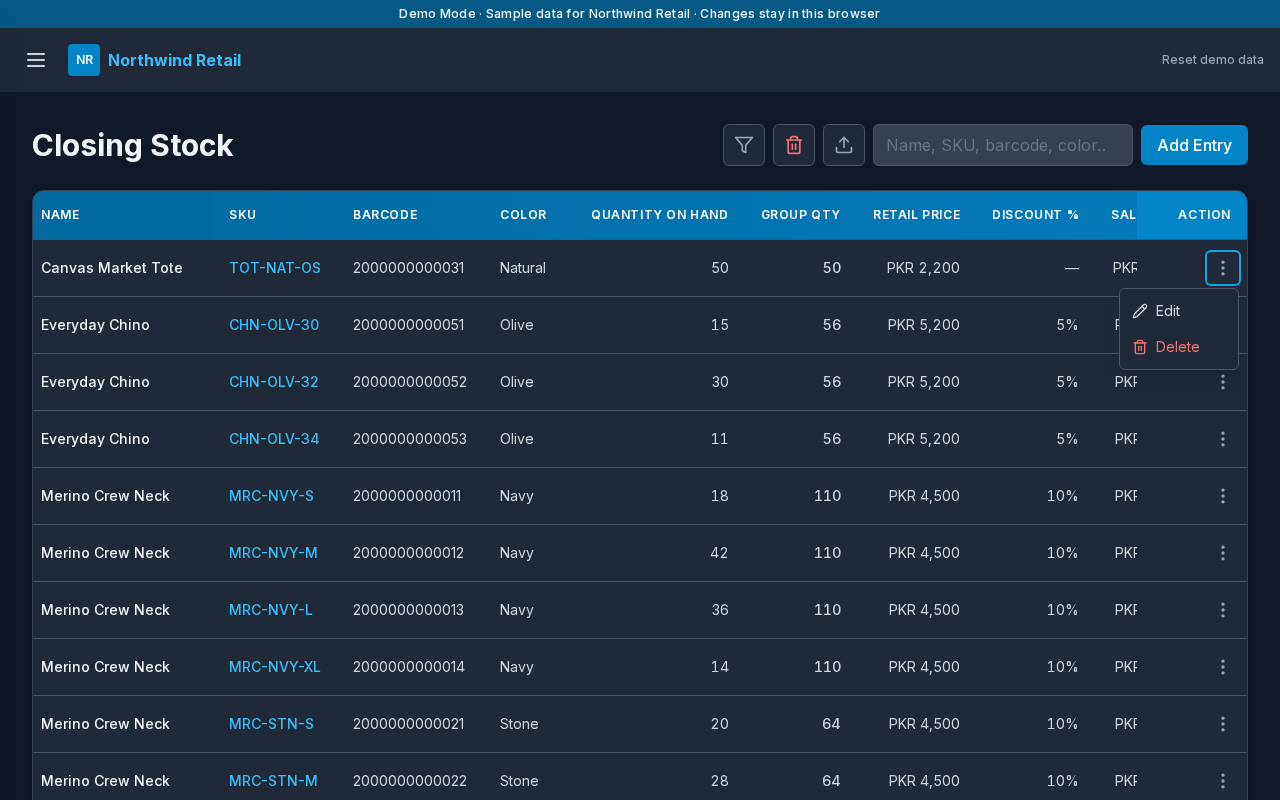
This is the master list. Each row is one SKU: name, color, barcode, price, quantity on hand, and how many times that SKU has been scanned.
Layout at a glance
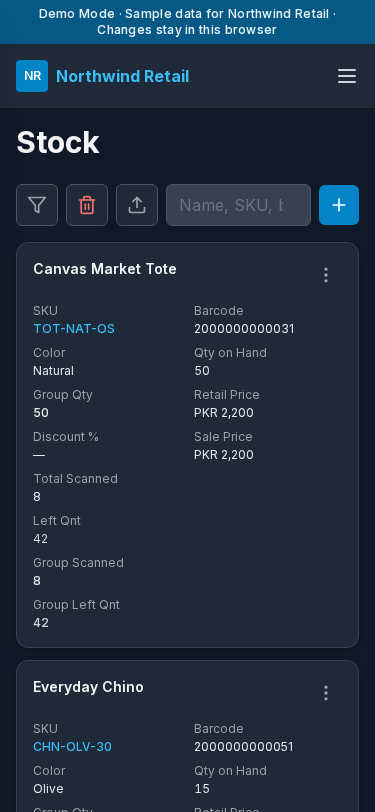
- Title Closing Stock (on a phone the title is Stock)
- Sort and filter, delete, import, search, and Add Entry
- A table on a wide screen and cards on a phone
- Records per page at the bottom
Steps
- Open Closing Stock from the menu.
- Search with Name, SKU, barcode, color… when the list is long. Type at least two characters.
- Choose Add Entry to create a row, fill the fields, and choose Save.
- Choose the Actions menu on a row for Edit or Delete.
- Choose a blue SKU to see which batches scanned it.
Columns
| Column | Meaning |
|---|---|
| Name | Product name |
| SKU | Size or variant code |
| Barcode | Value scanned on a batch page |
| Color | Color for this row |
| Quantity on Hand | Units expected for this SKU |
| Group Qty | Quantity on hand for every SKU that shares the same name and color |
| Retail Price | Price before discount, in PKR |
| Discount % | Discount applied to the retail price |
| Sale Price | Price after discount |
| Total Scanned | Scans for this SKU across batches |
| Group Scanned | Scans for the whole name and color |
| Left Qnt | Quantity on hand minus total scanned |
| Group Left Qnt | Group quantity minus group scanned |
Sort and filter
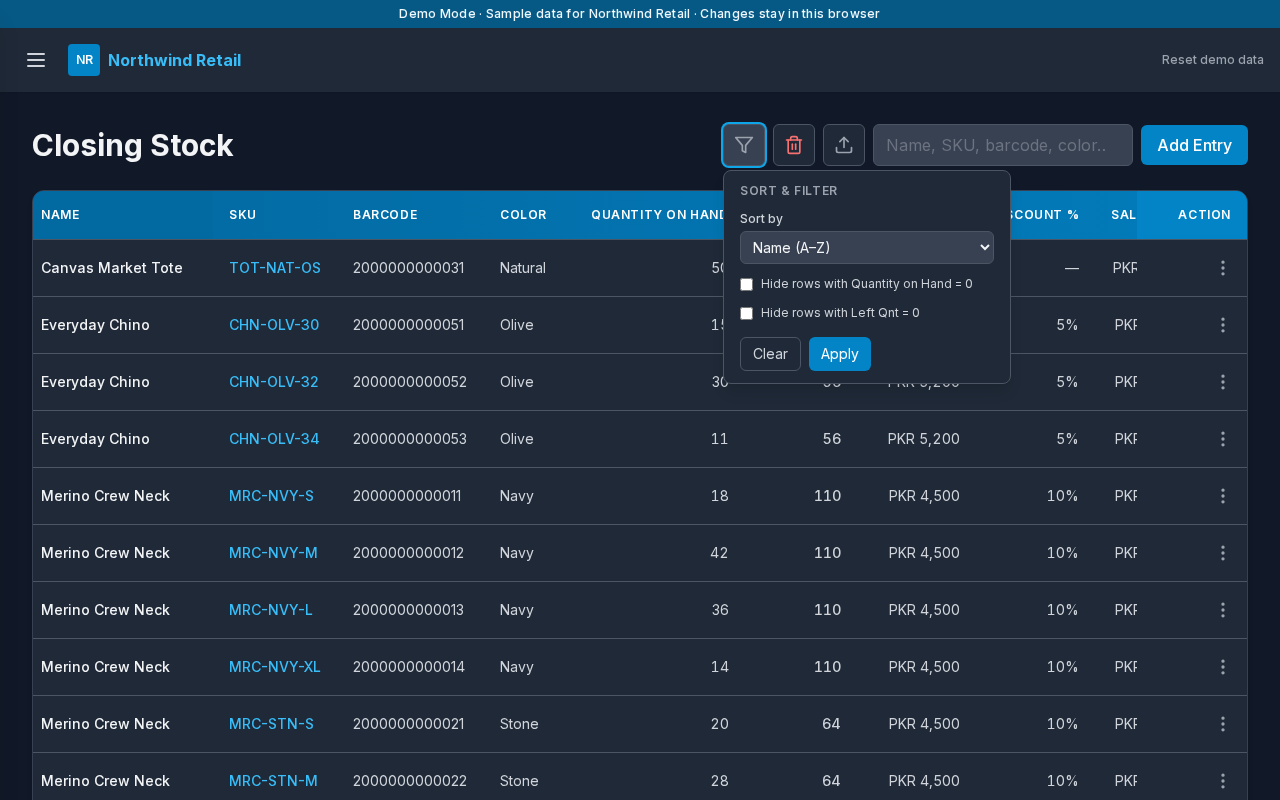
- Choose the filter button (Sort and filter table).
- Set Sort by.
- Optionally hide rows with Quantity on Hand = 0 or Left Qnt = 0.
- Choose Apply, or Clear to go back to the full list.
Add or edit an item
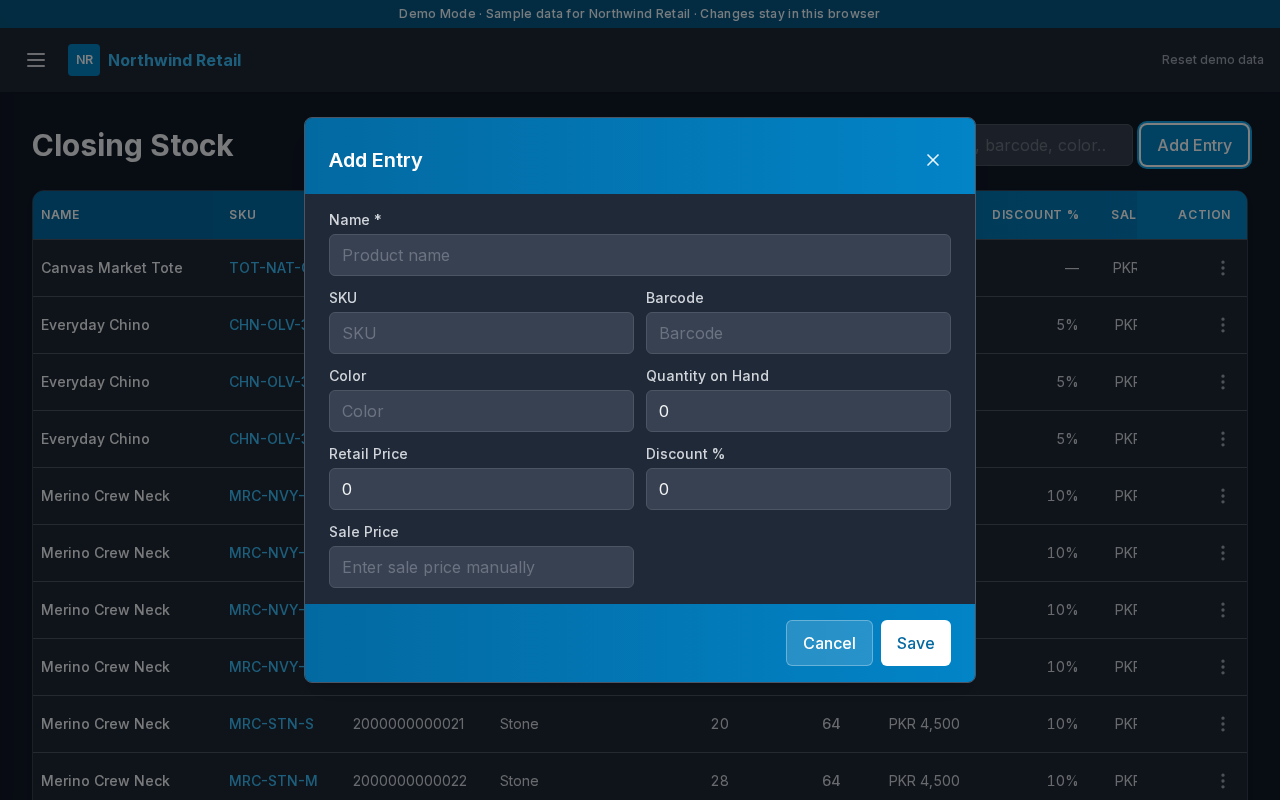
| Field | Required |
|---|---|
| Name | Yes |
| SKU | Yes for a useful count |
| Barcode | Yes if this item will be scanned |
| Color | Recommended |
| Quantity on Hand | Yes |
| Retail Price, Discount %, Sale Price | Optional. Sale price can be calculated from retail and discount |
Choose Cancel to leave without saving.
Import from CSV
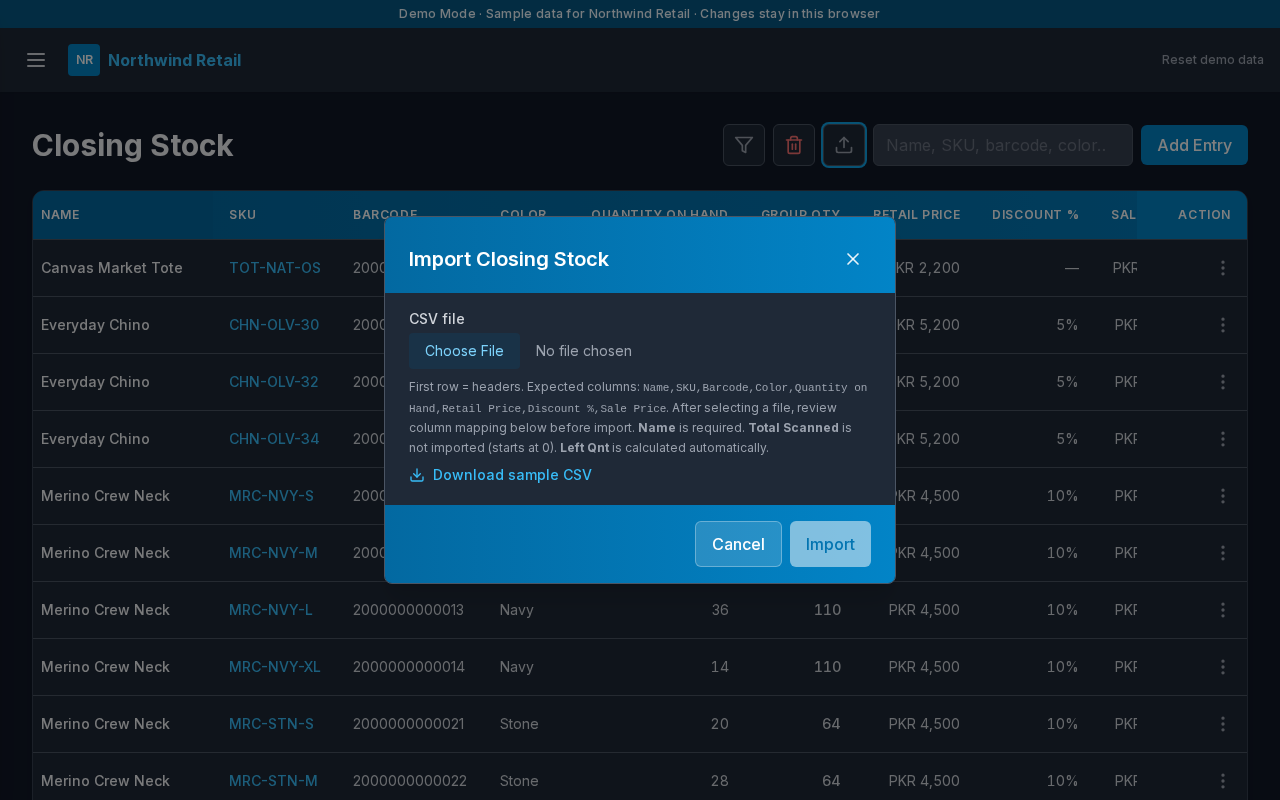
- Choose Import from CSV.
- Select a CSV file. The first row must be column titles.
- Map each column to a field. Name must be mapped, and each sheet column can map to only one field.
- Choose Import.
- Choose Close when the success message appears.
SKU scan breakdown
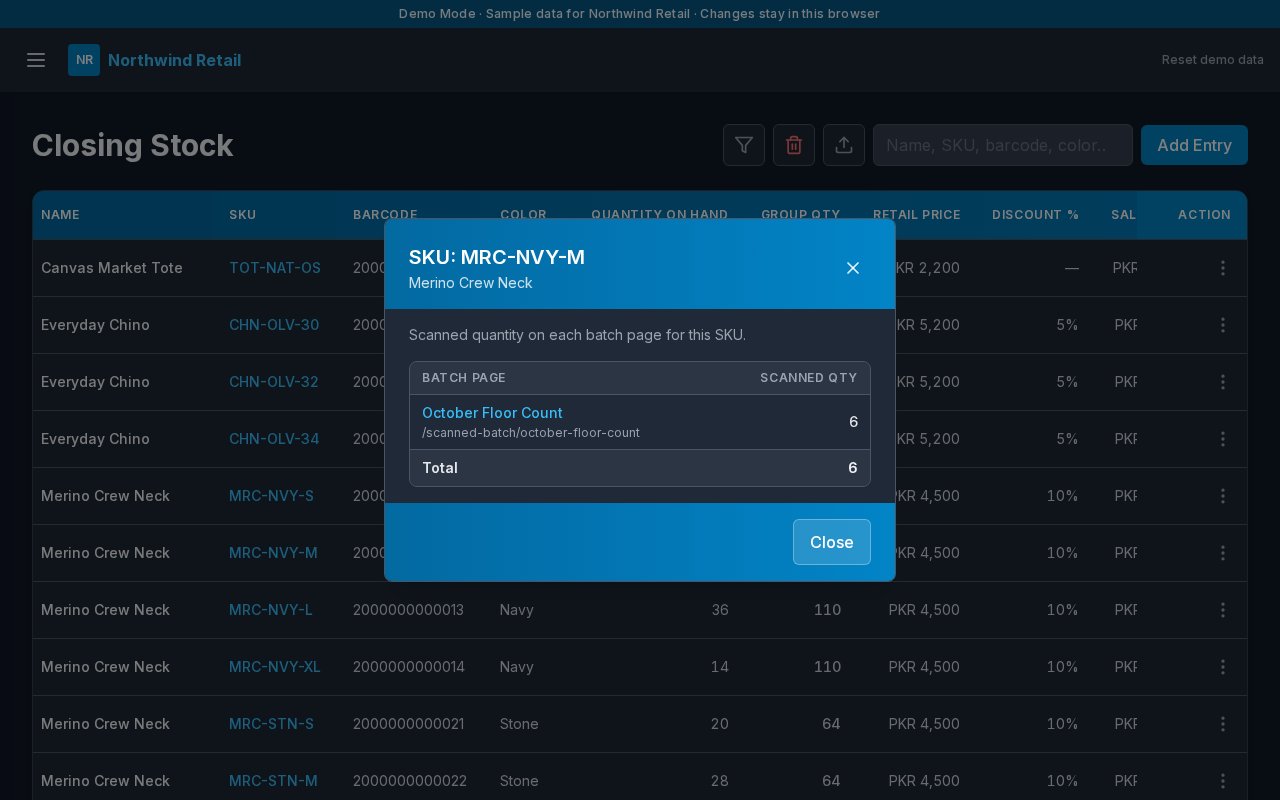
Choosing a SKU opens SKU: and the product name. The dialog lists each batch and how many scans match that SKU. Choose Close when you are done.
Errors and edge cases
- A search shorter than two characters shows no rows.
- Delete all items removes every row that matches the current search and filters. Confirm only when you mean it. Reset demo data restores the sample list.
- A viewer does not see Add Entry, import, or delete.