Users and Access
Version 1.0.0
Route: /settings/users-access
Who can access: administrators only. Editors and viewers are sent back to Settings if they open this address.
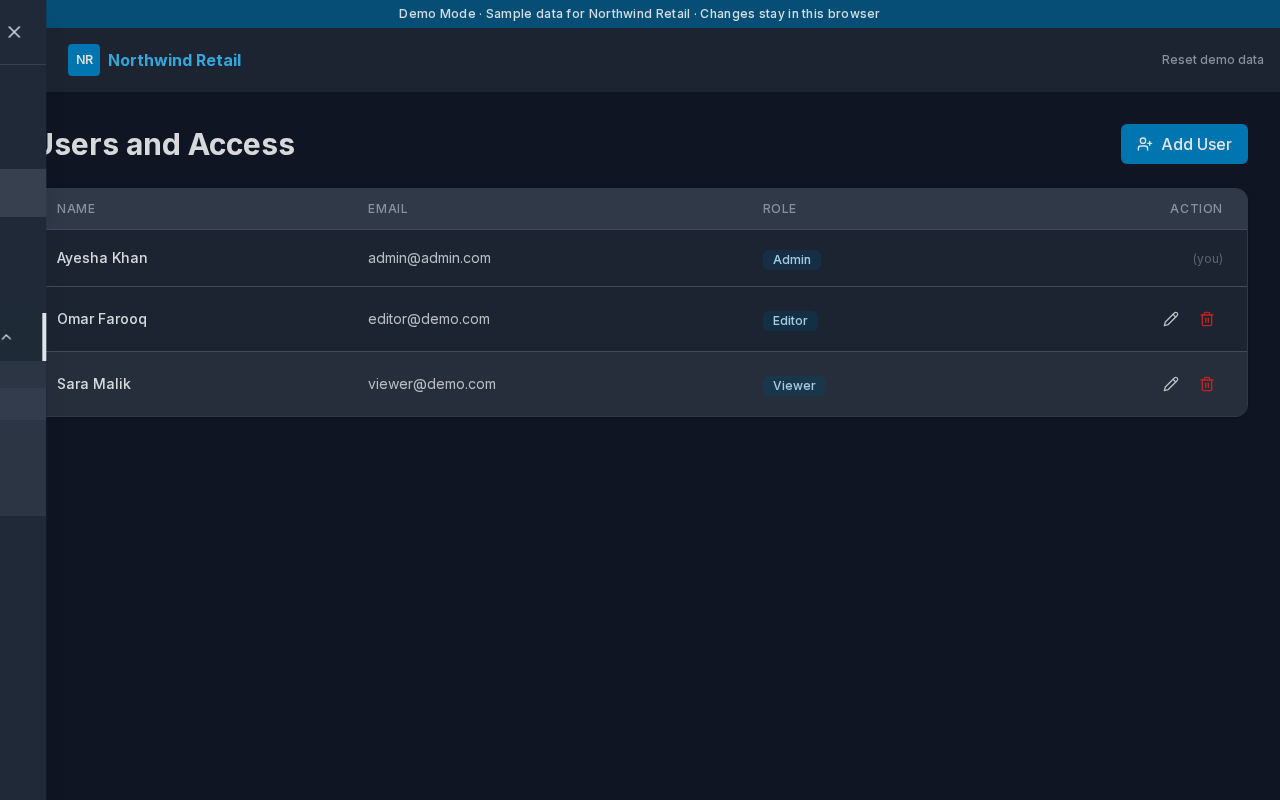
What this page does
Administrators create the people who use Audit System and decide which pages they can view, edit, or delete.
Layout at a glance
- Title Users and Access
- Add User
- A table of name, email, and role
- Edit and Delete on every row except your own
Steps
- Sign in as an administrator.
- Open the menu, expand Settings, and choose Users and Access.
- Choose Add User.
- Enter Name, Email, Password, and Role.
- Tick View, Edit, and Delete for each page.
- Choose Add User in the dialog to save.
Roles
| Role | Starting access in the demo |
|---|---|
| Admin | Every page, including this one |
| Editor | Dashboard, Closing Stock, and Scanned Batch. Can edit stock and batches. Cannot open Users and Access |
| Viewer | Can view Dashboard, Closing Stock, Settings, and Scanned Batch. Cannot edit or delete |
A viewer’s Edit and Delete boxes stay off. The dialog says Viewer: only View is used.
Add User
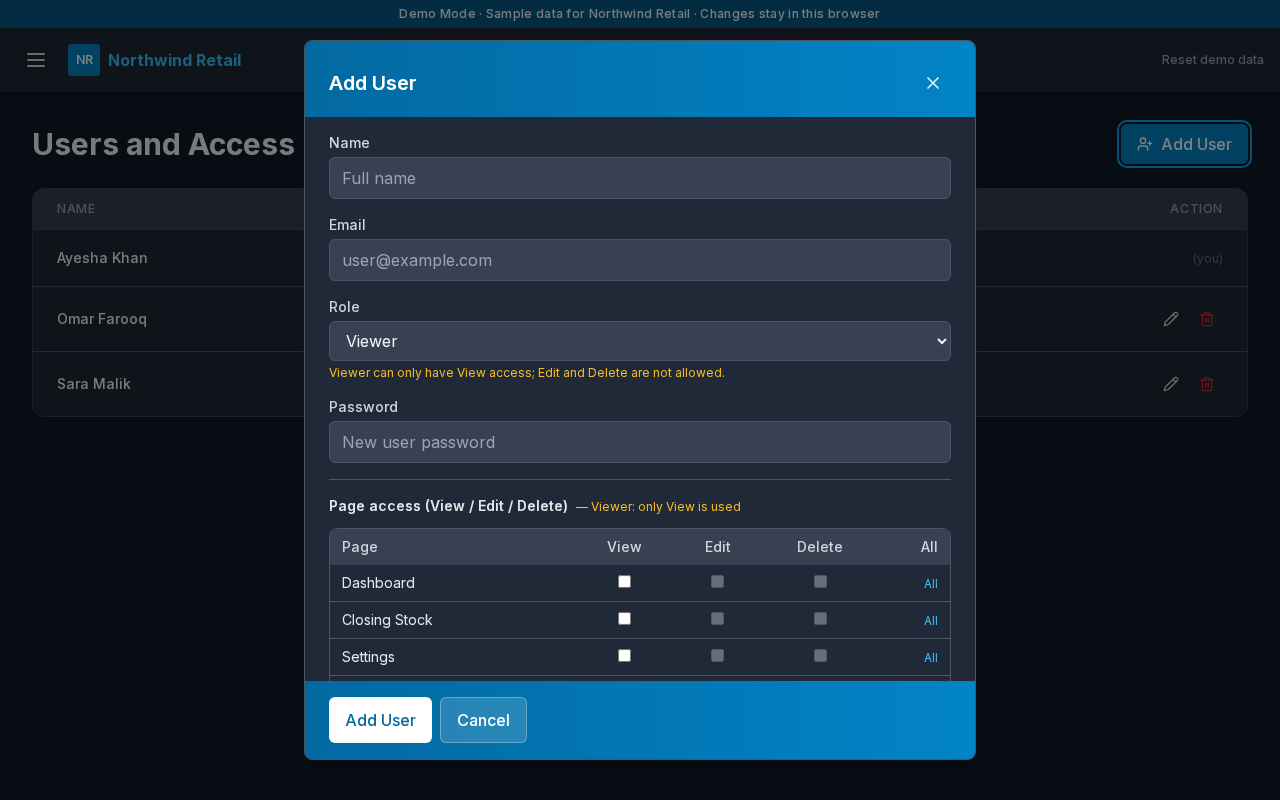
| Field | Notes |
|---|---|
| Name | The name shown in the user list |
| Must be unique. Used to sign in | |
| Password | At least 6 characters |
| Role | Admin, Editor, or Viewer |
| Page access | One row per page: Dashboard, Closing Stock, Settings, Scanned Batch, Users and Access |
Choose All on a page to tick the boxes that the role allows. Choose Cancel to discard the dialog.
Edit and delete
Edit opens the same dialog. Leave the password blank to keep the current one.
You cannot delete the account you are signed in with. The row shows (you) instead of delete. Deleting someone else removes their sign-in. In Demo Mode, Reset demo data restores Ayesha Khan, Omar Farooq, and Sara Malik.
Errors and edge cases
- Email already exists means another account already uses that address.
- An editor who opens this route is redirected away.
- Page access is checked on every screen. If a person cannot view a page, it is hidden from their menu.