Scanned batches
Version 1.0.0
Route: /settings/scanned-batch
Who can access: anyone who can view Scanned Batch under Settings. Editors and admins can add, rename, and delete batches. Viewers can open the list.
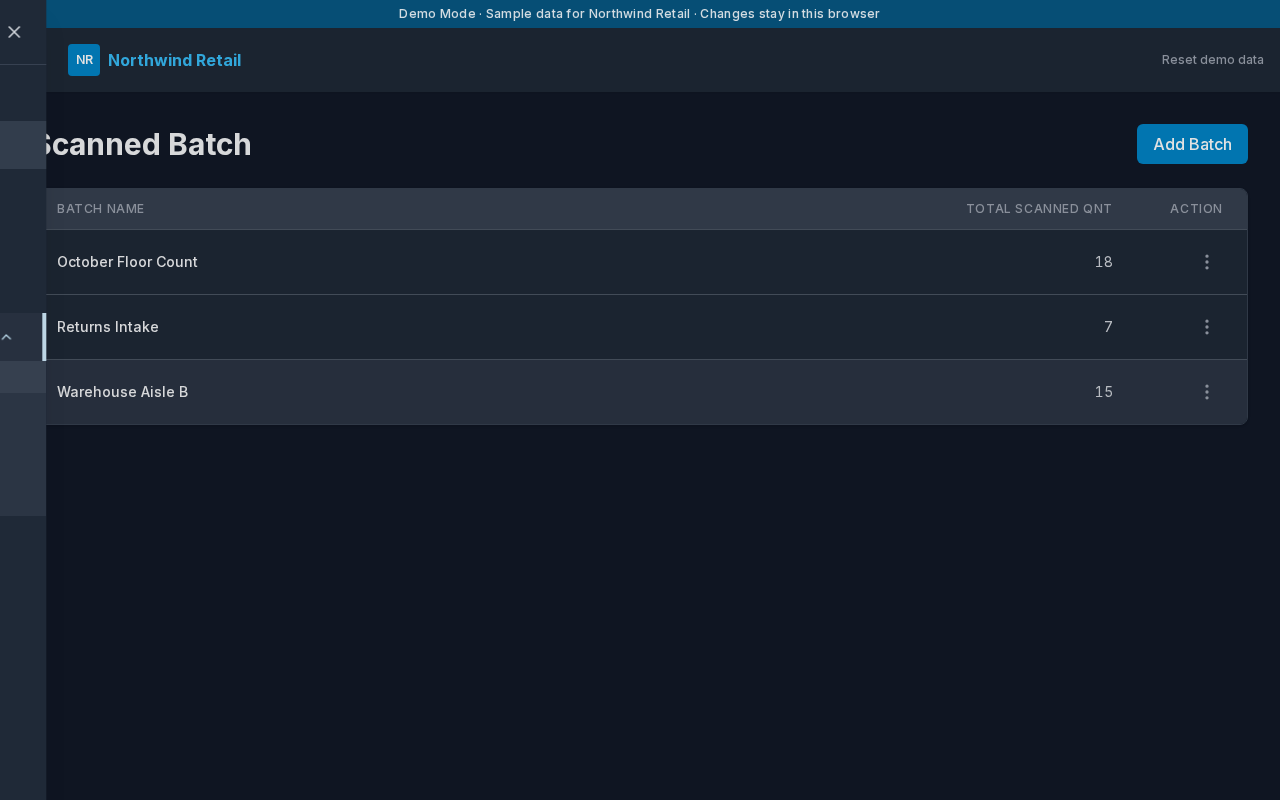
What this page does
A batch is one counting session, such as a floor count or a returns intake. This page creates those sessions. Each batch also appears in the main menu so staff can open it and scan.
Layout at a glance
- Title Scanned Batch
- Add Batch
- A list with Batch Name and Total Scanned Qnt
- An Actions menu on each row when you can edit or delete
Steps
- Open the menu, expand Settings, and choose Scanned Batch.
- Choose Add Batch.
- Type a Batch Name and choose Add.
- The new batch appears in this list and in the main menu.
- Choose the batch name in the menu when you are ready to scan.
Add or rename
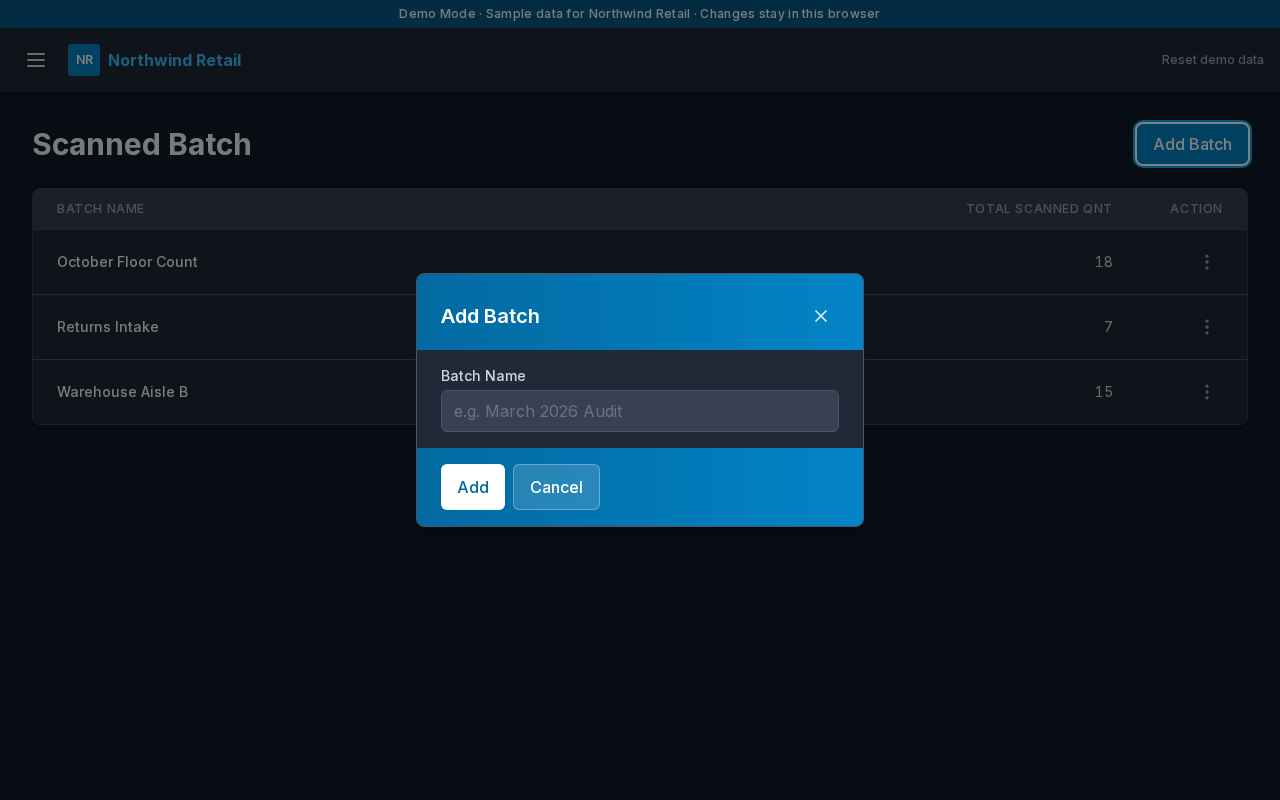
| Field | Notes |
|---|---|
| Batch Name | Shown in the menu. Spaces become the page address, so “October Floor Count” opens as /scanned-batch/october-floor-count |
Choose Save when you are renaming. Choose Cancel to leave the dialog.
Delete
Actions then Delete asks you to confirm. Deleting a batch removes its scan lines. The master Closing Stock list stays. Reset demo data brings the sample batches back.
Sample batches
| Batch | What it represents |
|---|---|
| October Floor Count | Shop-floor count |
| Warehouse Aisle B | Warehouse count |
| Returns Intake | Items coming back, including two barcodes that are not on the master list |
Errors and edge cases
- An empty name is not saved.
- A viewer can open batches from the menu but cannot add or delete them.
- Total Scanned Qnt is the number of barcode lines in that batch, not the master quantity on hand.