Scan a batch
Version 1.0.0
Route: /scanned-batch/[slug]
Example: /scanned-batch/october-floor-count
Who can access: anyone who can view Closing Stock. Editors and admins can add and remove scans. Viewers can read the list.
What this page does
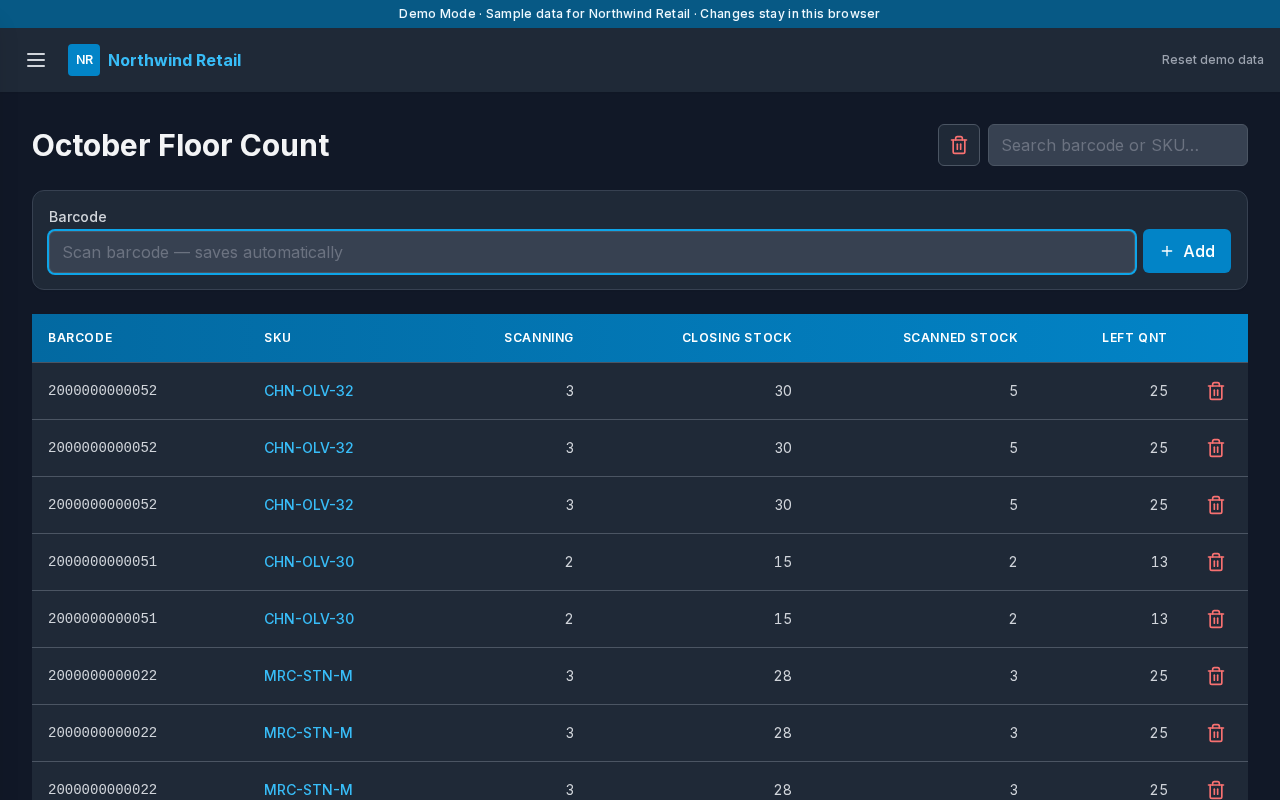
This is the scanning screen for one batch. You type or scan a barcode, and the line is saved immediately. The page matches the barcode to Closing Stock and shows the SKU, how many times it has been scanned, quantity on hand, and left quantity.
Layout at a glance
- The batch name as the title
- Search: Search barcode or SKU…
- Barcode field and Add
- A table of scan lines
Steps
- Open the batch from the main menu, for example October Floor Count.
- Click Barcode. The cursor is already in the field when the page opens.
- Scan or type the barcode and press Enter, or choose Add.
- The new line appears at the top.
- Repeat until the count for this session is finished.
- Open Closing Stock or the Dashboard to see the updated Total Scanned and Left Qnt.
What each line shows
| Column | Meaning |
|---|---|
| Barcode | What was scanned |
| SKU | Matched from Closing Stock. Blank when the barcode is not on the master list |
| Scanning | How many lines in this batch share that SKU |
| Closing Stock | Quantity on hand for the matched SKU |
| Scanned Stock | Scans for that SKU across every batch |
| Left Qnt | Quantity on hand minus scanned stock |
The sample batch Returns Intake includes barcode 2000000099991, which is not on the master list. That line stays on the batch and does not change a master quantity.
Search and delete
Search needs at least two characters. It matches the barcode or the SKU.
Actions on a line can remove that scan. Delete all removes every line in the batch that matches the current search. Use it only when the session should be cleared. Reset demo data restores the sample scans.
Errors and edge cases
- An empty barcode is ignored.
- A barcode that is not on the master list is still saved. Fix the master list or the scan, whichever is wrong.
- A viewer can read the page and cannot add or delete scans.
- Two people sharing one demo account in the same browser see the same sandbox. Different demo accounts do not share scans.