Profile
Version 1.0.0
Route: /profile
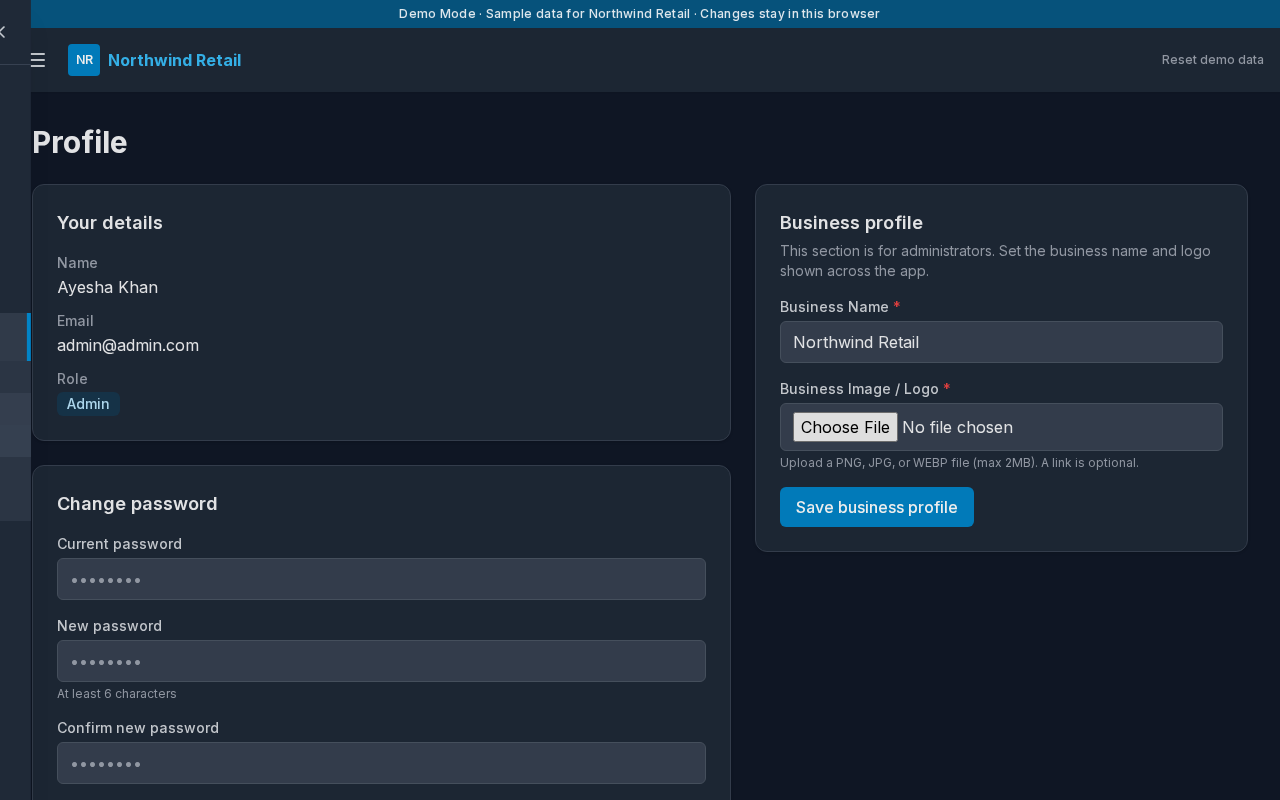
Who can access: anyone who can view Settings. The password form is for the signed-in person. Business profile is for administrators.
What this page does
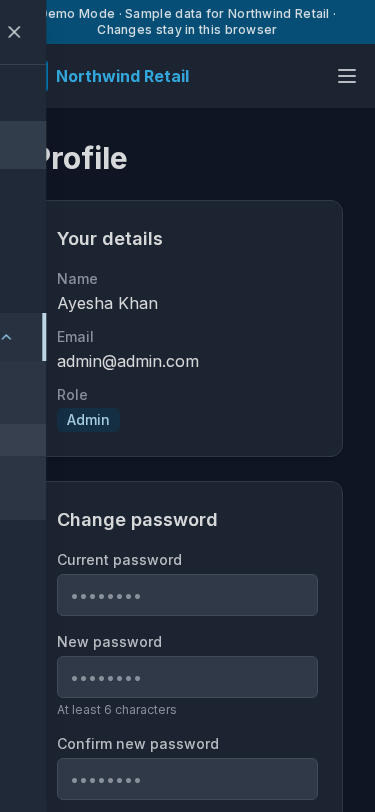
You change your own password here. An administrator also sets the business name and logo that appear in the header and on the login screen.
Layout at a glance
- Title Profile
- Change password
- Business profile, for administrators
Change password
- Open the menu, expand Settings, and choose Profile.
- Enter Current password, New password, and Confirm new password.
- Choose Update password.
- The page confirms Password changed successfully.
The new password must be at least 6 characters and the confirmation must match. The current password must be the one you used to sign in.
In Demo Mode, Reset demo data restores the sample passwords shown on the login cards.
Business profile
Administrators see Business profile.
| Field | Notes |
|---|---|
| Business Name | Shown in the header and on the login screen. Required |
| Business Image / Logo | PNG, JPG, or WEBP, up to 2 MB. Required if no logo is saved yet |
- Type the name.
- Choose an image, or keep the current one.
- Choose Save business profile.
The header updates as soon as the profile is saved. The sample business is Northwind Retail. With no logo, the header shows the initials NR.
Errors and edge cases
- Current password is incorrect means the first box does not match the password you signed in with.
- New password and confirm password do not match means the two new boxes differ.
- A viewer or editor can change their own password. They do not see the business name form.
- An empty business name is not saved.