Login
Version: 1.0.3
Route: /login
Who can access: Anyone visiting Demo Mode (signed-out users). Production uses credentials provided by your administrator.
Screenshot
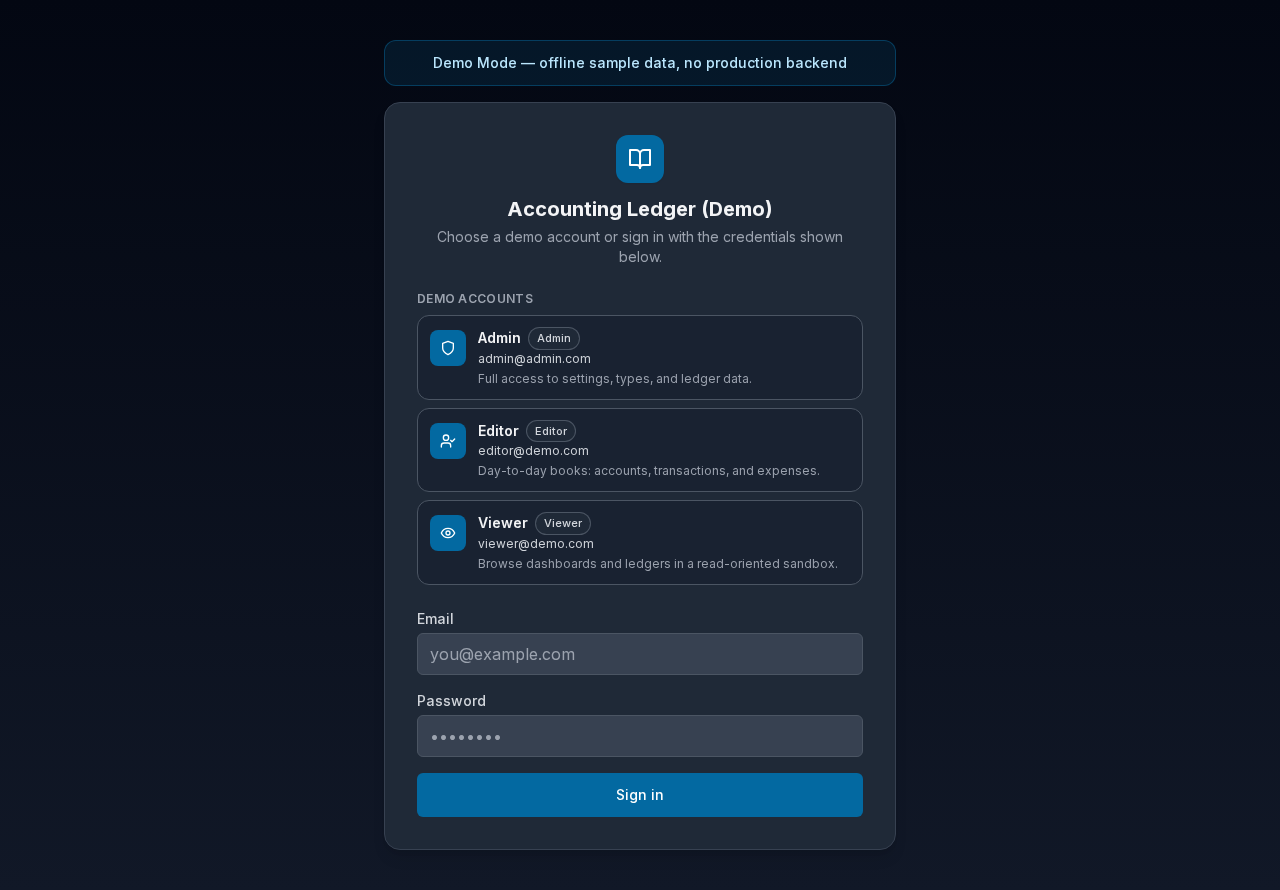
What this page does
Signs you into Accounting Ledger. In Demo Mode, sample books are stored in this browser only — there is no production backend. Choose a demo account card for the fastest start, or enter email and password manually.
Layout at a glance
- Banner: Demo Mode — offline sample data, no production backend
- Product title: Accounting Ledger (Demo)
- DEMO ACCOUNTS — clickable cards for Admin, Editor, and Viewer
- Form fields: Email, Password
- Primary action: Sign in
Steps
Sign in with a demo account card
- Open the Demo Mode app (from the project page when deployed, or locally).
- On the login screen, find DEMO ACCOUNTS.
- Select a card:
- Admin — full access to settings, types, and ledger data
- Editor — day-to-day books: accounts, transactions, and expenses
- Viewer — browse dashboards and ledgers in a read-oriented sandbox
- The app signs you in and opens the Dashboard.
Demo logins appear as account cards on the Demo Mode login screen (email is shown on each card). Do not copy passwords into external documents.
Sign in with email and password
- Enter Email (placeholder:
you@example.com). - Enter Password.
- Select Sign in.
- While the request runs, the button shows Signing in….
Fields
| Field | Required | Notes |
|---|---|---|
| Yes | Must match a demo account when using Demo Mode | |
| Password | Yes | Shown on the account cards in Demo Mode only |
Errors & edge cases
- Empty email or password: Email and password are required.
- Wrong credentials: a clear error message appears above the form (for example, sign-in failed). Correct the values or use an account card.
- Already signed in: visiting a protected page redirects you to the app; signing out returns you here.
- Demo data is per browser and per demo user — clearing site data resets local sandboxes.