Settings (General)
Version: 1.0.3
Route: /settings
Who can access: Signed-in users. Branding and type filters are typically managed by Admin in Demo Mode.
Screenshots
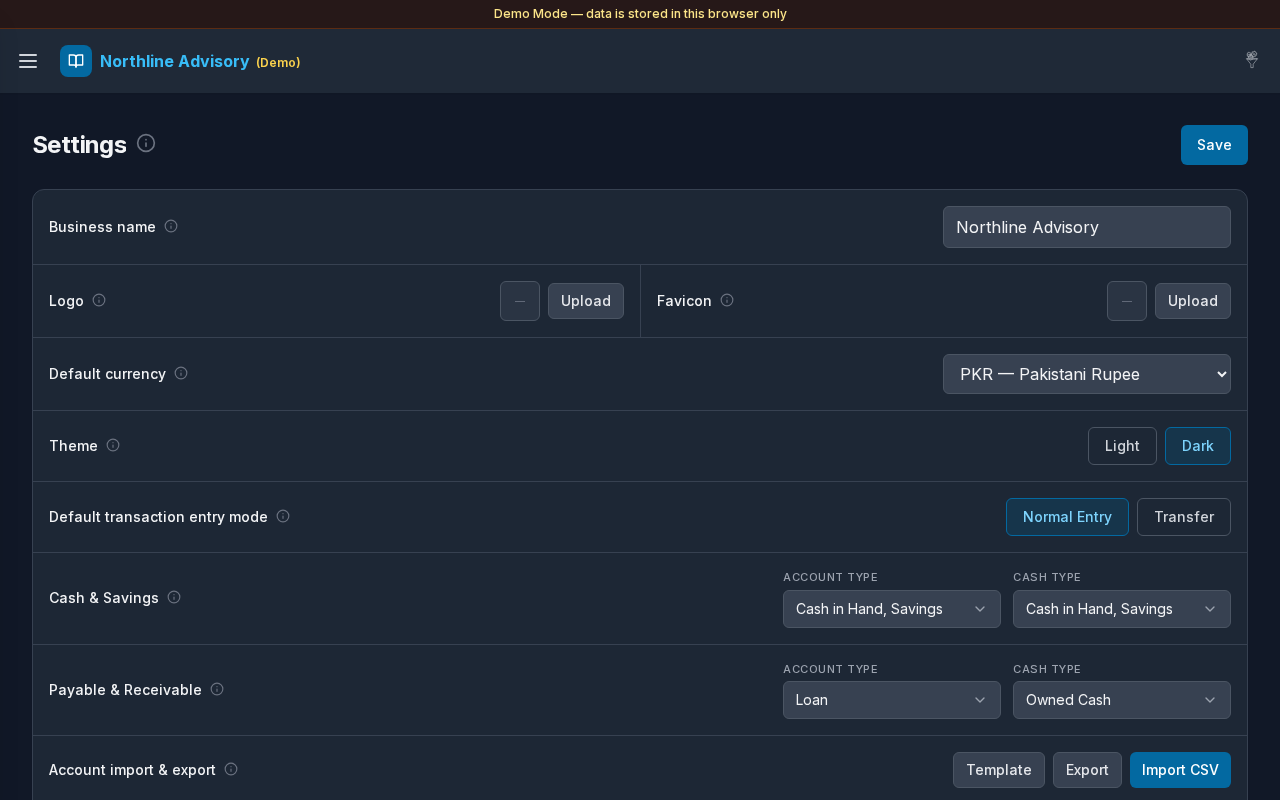
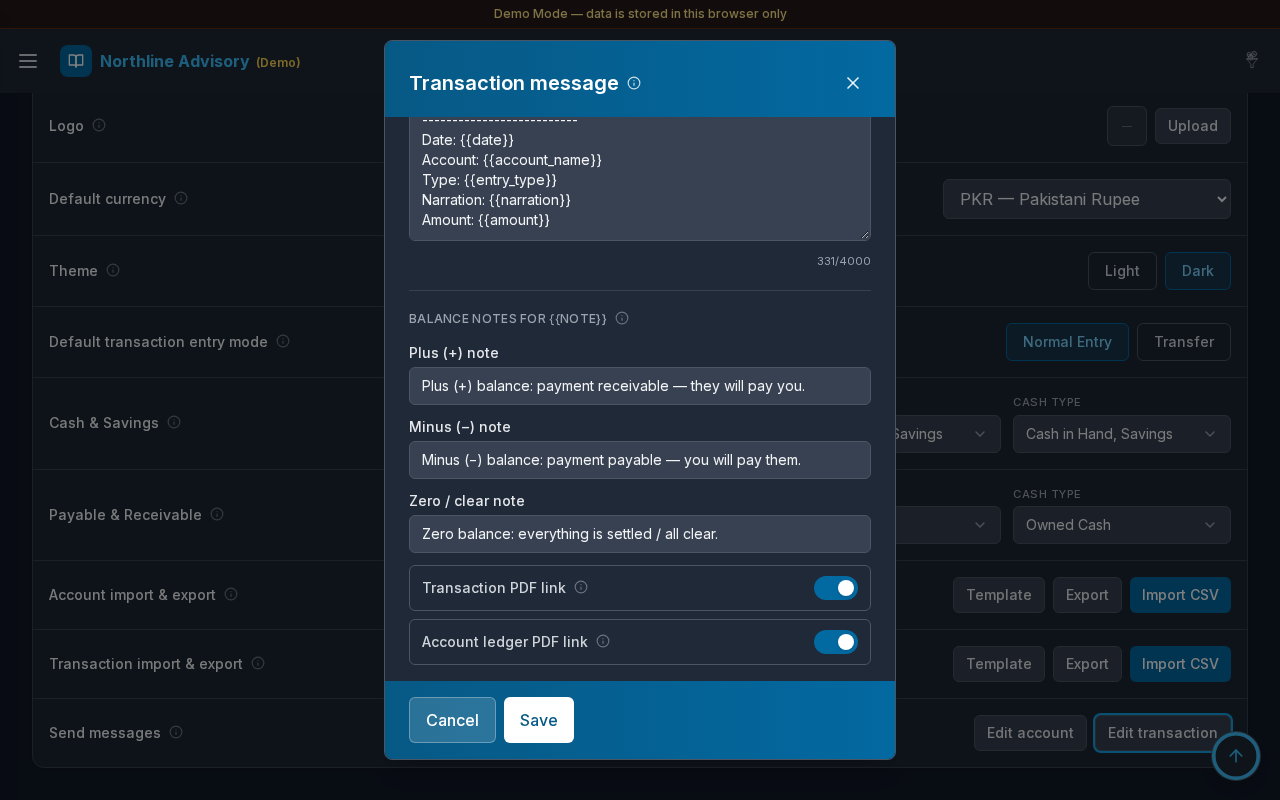
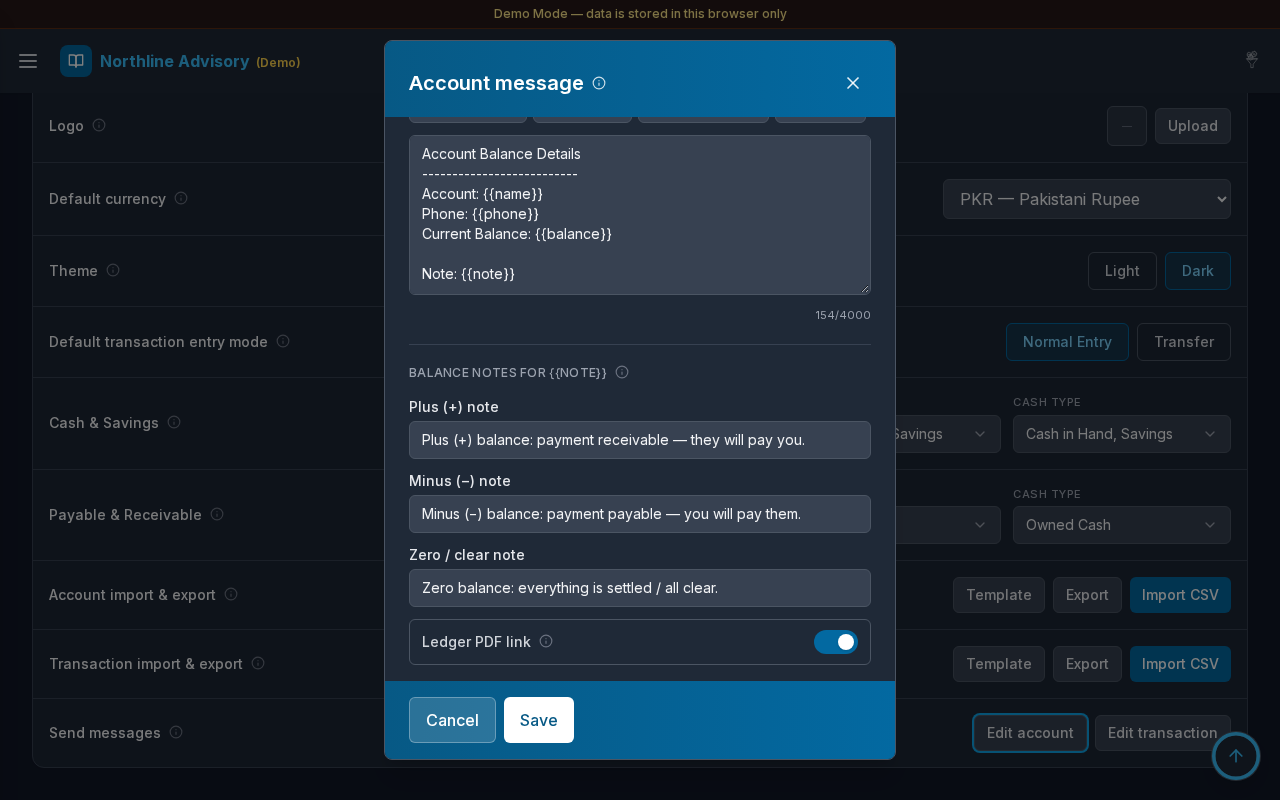
What this page does
Business branding, default currency, theme, default transaction entry mode, which types feed Cash & Savings and Payable/Receivable views, CSV import/export for accounts and transactions, and Send messages templates for WhatsApp (with optional PDF / ledger URL toggles).
Layout at a glance
- Title Settings with info tip
- Primary action: Save
- Rows: Business name, Logo, Favicon, Default currency, Theme, Default transaction entry mode
- Filter groups: Cash & Savings, Payable & Receivable (each with Account Type and Cash Type)
- Account import & export: Template, Export, Import CSV
- Similar controls for transaction import/export when present
- Send messages: Edit account and Edit transaction template buttons
Steps
Update business branding
- Open Settings → General.
- Edit Business name (shown in the top bar).
- Under Logo or Favicon, select Upload to choose an image.
- Select Save.
Set currency and theme
- Choose Default currency (for example PKR — Pakistani Rupee).
- Under Theme, select Light or Dark.
- Select Save.
Default transaction entry mode
- Under Default transaction entry mode, choose Normal Entry or Transfer.
- This pre-selects the mode when you open Add Transaction; you can still switch on the form.
- Select Save.
Configure Cash & Savings filters
- Under Cash & Savings, set Account Type and Cash Type multi-selects.
- Select Save.
- Cash & Savings lists accounts matching any selected type.
Configure Payable & Receivable filters
- Under Payable & Receivable, set Account Type and Cash Type.
- Select Save.
- Matching accounts appear on Payable or Receivable by balance sign.
Import or export accounts
- Under Account import & export:
- Template — download a CSV template
- Export — download current accounts (includes balance)
- Import CSV — upload a file (
name,phone,account_type,cash_type)
- Watch progress while import/export runs.
- Duplicate names are skipped on import; types match by name or code.
Edit message templates
- Under Send messages, select Edit account or Edit transaction.
- Insert variables with the chips above the editor (for example
{{name}},{{balance}},{{pdf_url}},{{ledger_url}}). - Optionally set Plus (+), Minus (−), and Zero balance notes used by
{{note}}(help on the info icon). - Use each Allow URL row (heading + tip on the left, switch on the right):
- Account template: Ledger PDF link → fills
{{ledger_url}} - Transaction template: Transaction PDF link →
{{pdf_url}}, and optionally Ledger PDF link →{{ledger_url}}
- Account template: Ledger PDF link → fills
- Select Save in the modal — the template writes immediately (no need to also click the page Save).
- Info tips do not block scrolling; click outside a tip or scroll to dismiss it.
Key fields
| Setting | Purpose |
|---|---|
| Business name | Header / branding label |
| Logo / Favicon | Visual branding |
| Default currency | Money formatting across the app |
| Theme | Light or Dark appearance |
| Default transaction entry mode | Prefills Add Transaction |
| Cash & Savings types | Which accounts appear on Cash & Savings |
| Payable & Receivable types | Which accounts appear on Payable / Receivable |
| Send messages | WhatsApp templates + Allow URL for PDF / ledger links |
Errors & edge cases
- Unsaved page edits are lost if you navigate away without Save (message templates save inside their own modal).
- Import progress shows percent complete; wait until finished before leaving the page.
- Demo Mode stores settings in this browser only.
- Sidebar also offers quick Light mode / Dark mode and Reset demo data for the current demo account.
- Public share links are first-party (
/l/f/{fileId}or/l/{code}) — no third-party ad shorteners.