Transactions
Version: 1.0.3
Route: /transactions
Who can access: Signed-in users. Editors and Admins can add and edit; Viewers primarily browse.
Screenshots
What this page does
The journal of every debit, credit, and transfer. Search and filter entries, sort key columns, open a transaction preview (Details / Documents), add or edit transactions, attach documents, export a voucher PDF, and send a WhatsApp message with optional PDF / ledger links.
Layout at a glance
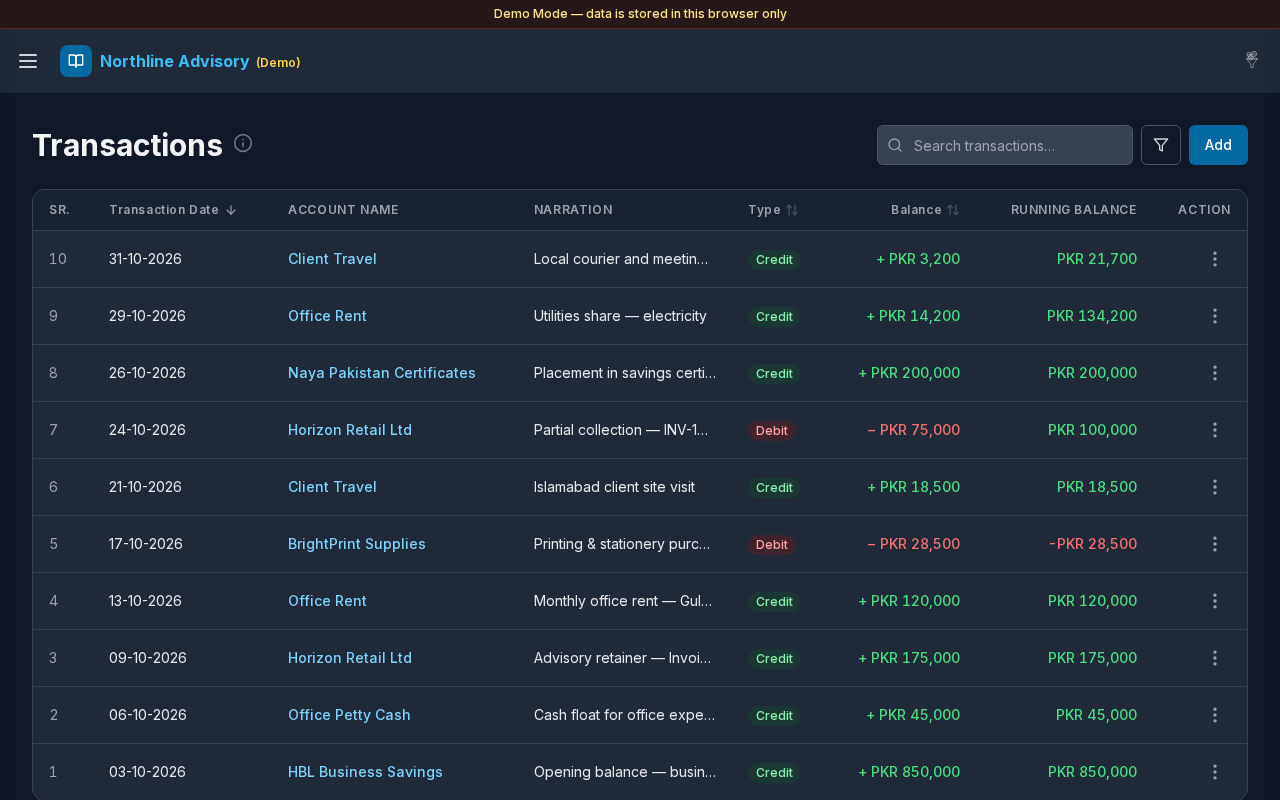
- Title Transactions with info tip
- Search: Search transactions…
- Filter control (funnel) for date range, type, and related filters
- Add button
- Table columns: SR., TRANSACTION DATE, ACCOUNT NAME, NARRATION, TYPE, BALANCE, RUNNING BALANCE, ACTION
- Sortable headers: Transaction Date, Type, and Balance (click to toggle ascending / descending)
- Compact pagination on mobile (first … current … last)
- Optional back link when opened from another page with a return path
Steps
Browse the journal
- Open Transactions from the sidebar, the dashboard Transactions button, or an account / KPI link.
- Review rows newest-first by transaction date (or your active sort).
- TYPE shows Credit (green) or Debit (red).
- BALANCE shows signed amounts; RUNNING BALANCE shows the cumulative position for context.
Sort columns
- Select TRANSACTION DATE, TYPE, or BALANCE in the table header.
- Click again to reverse the sort direction.
Search
- Enter text in Search transactions….
- Matching rows filter by account name, narration, and related fields.
Filter
- Select the filter (funnel) control.
- Set date range and type filters as needed (for example Credit or Debit).
- Apply filters; active filters appear as chips you can clear.
- Use clear-all when you want the full journal again.
Add a transaction
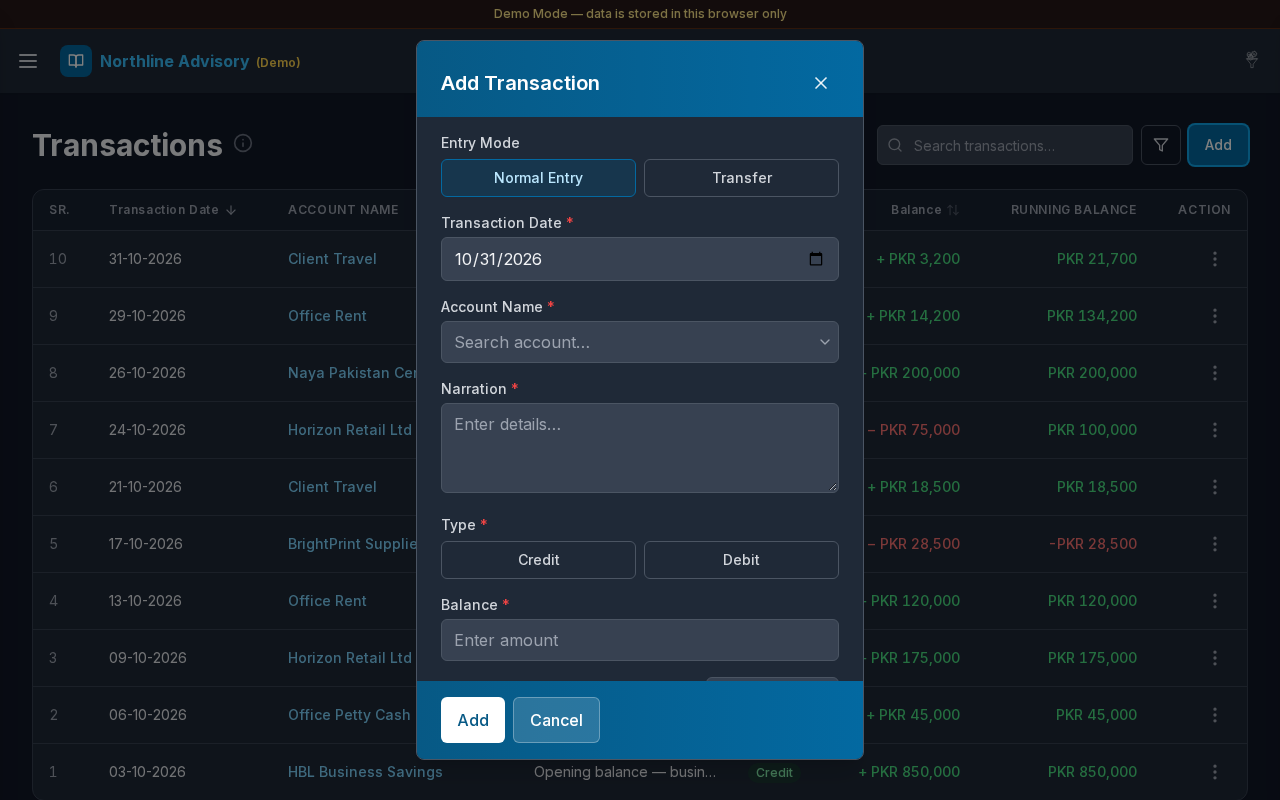
- Select Add.
- In Add Transaction, choose Normal Entry or Transfer.
- Fill Transaction Date, account fields, Narration, type (Credit/Debit for normal), and Balance.
- Optionally attach files.
- Select Add (or Save when editing), or Cancel.
- The modal closes quickly; uploads finish in the background when attachments are present.
Open transaction preview
- Select a row (or Details from the row menu).
- Use the Details and Documents tabs. Documents shows a file count badge when attachments exist.
- Footer icon buttons: Send message, Edit, and Close.
Send message / export PDF
- From the row menu or preview footer, choose Send message (opens WhatsApp promptly while PDFs build).
- When Allow URL is on in Settings, the message fills
{{pdf_url}}(voucher) and/or{{ledger_url}}(account ledger) with short public links. - Export PDF builds a voucher plus uploaded images (including WebP/GIF) without duplicating a previously saved voucher file already in Documents.
Row actions
- Open the ACTION menu (⋯) on a row.
- Typical options include Details, Edit, Delete, Send message, and PDF export when available.
- Confirm deletes in the Delete dialog.
Open an account ledger
- Select an ACCOUNT NAME link.
- Or arrive from Cash & Savings / Payable / Receivable / Expenses with
accountIdalready set — a filter chip shows the account. - Use the back control when a return path was provided.
Table columns
| Column | Description |
|---|---|
| SR. | Row number on the current page |
| TRANSACTION DATE | Display date (DD-MM-YYYY); sortable |
| ACCOUNT NAME | Linked account |
| NARRATION | Description |
| TYPE | Credit or Debit badge; sortable |
| BALANCE | Signed amount in the default currency; sortable |
| RUNNING BALANCE | Cumulative balance context |
| ACTION | Row menu |
Errors & edge cases
- Validation in the modal mirrors the dashboard form (required date, narration, amount, accounts).
- Delete asks for confirmation before removing an entry.
- Empty search or filters: a calm empty state explains that nothing matches.
- Date filters from Today Expense / Yesterday Expense on the dashboard pre-fill the journal for expense accounts only.
- On mobile, the back-to-top control sits above pagination so it does not cover page controls.