Profile
Version: 1.0.3
Route: /settings/profile
Who can access: Signed-in users (own profile).
Screenshot
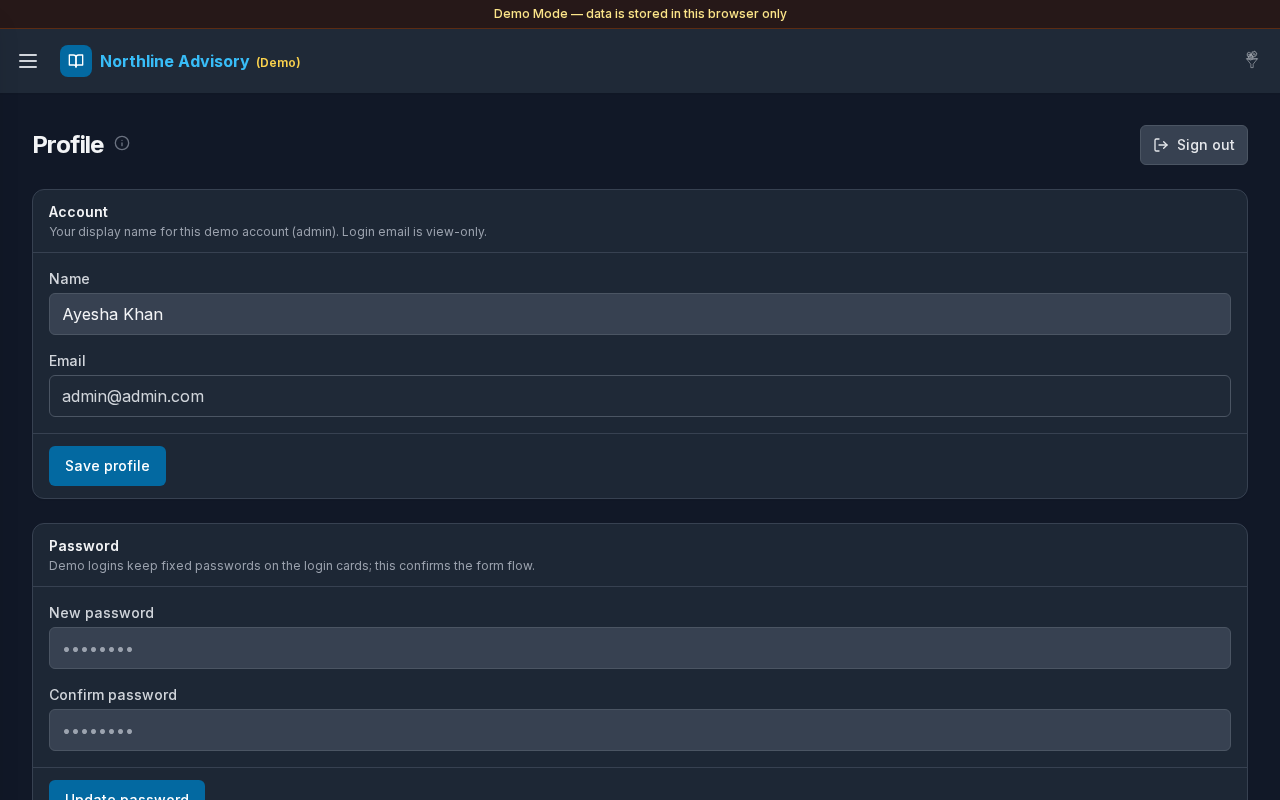
What this page does
Update your display name for the current Demo Mode session, confirm the password form flow, and Sign out. Email is shown for reference and cannot be edited here.
Layout at a glance
- Title Profile with info tip
- Header action: Sign out
- Section Account: Name (editable), Email (view-only), Save profile
- Section Password: New password, Confirm password, update action
Steps
Update profile
- Open Settings → Profile.
- Edit Name as needed. Email is read-only.
- Select Save profile.
- A success message confirms the demo session was updated.
Change password (demo form)
- Enter New password (at least 8 characters).
- Re-enter under Confirm password.
- Submit the password form.
- In Demo Mode, fixed passwords on the login account cards remain the documented way to re-enter; the form confirms the UI flow for this session.
Sign out
- Select Sign out (button shows Signing out… while working).
- You return to Login.
Fields
| Field | Required | Notes |
|---|---|---|
| Name | Yes | Display name for this demo user |
| — | View-only; matches the signed-in login email | |
| New password | For password form | Minimum 8 characters |
| Confirm password | For password form | Must match new password |
Errors & edge cases
- Empty name: Name is required.
- Short password: Password must be at least 8 characters.
- Mismatch: New password and confirmation do not match.
- Info tip: update display name for this demo session; sign out ends the local session.