Dashboard
Version: 1.2.0
Route: /
Who can access: Signed-in users (Admin, Editor, Viewer in Demo Mode).
Screenshots
What this page does
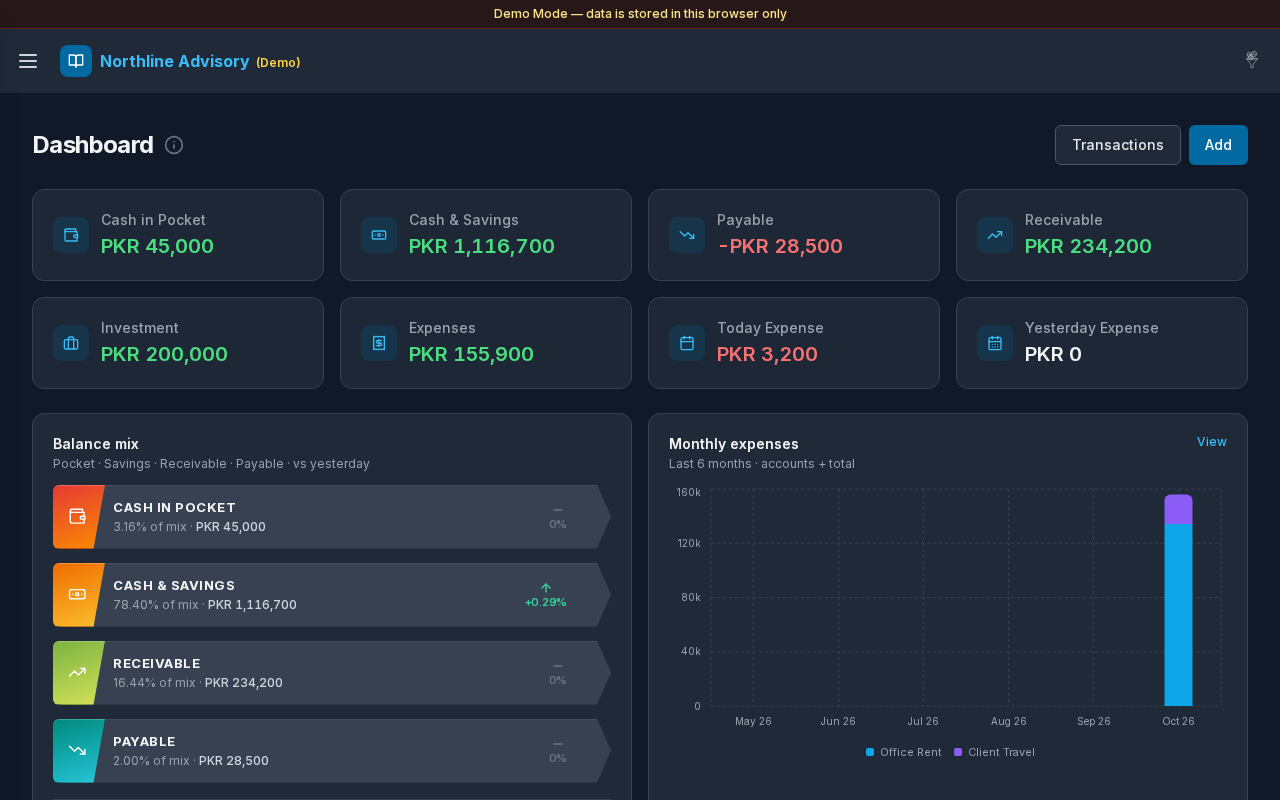
Gives a single overview of your books: key balances, expense snapshots, balance mix with day-over-day change, and monthly expense charts. You can open Transactions or Add Transaction without leaving the dashboard.
Layout at a glance
- Page title Dashboard with an info tip (About Dashboard)
- Header actions: Transactions (opens the journal) and Add (desktop) / icon buttons on mobile
- KPI cards: Cash in Pocket, Cash & Savings, Payable, Receivable, Investment, Expenses, Today Expense, Yesterday Expense
- Balance Mix ribbons with category icons and vs-yesterday %
- Monthly expenses chart (last 6 months) and Top expense accounts with wrapped account names
- Demo banner: Demo Mode — data is stored in this browser only.
Steps
Review balances
- After login, you land on Dashboard.
- Read the KPI cards. Positive amounts appear in green; negative amounts in red where applicable.
- Select a linked card (for example Cash & Savings, Payable, Receivable, Investment, Expenses) to open that page.
- Select Today Expense or Yesterday Expense to open Transactions filtered to Expense accounts only for that date.
Jump to the journal
- Select Transactions in the page header (icon-only on small screens).
- You open the full Transactions journal.
Add a transaction from the dashboard
- Select Add (or the plus control on mobile).
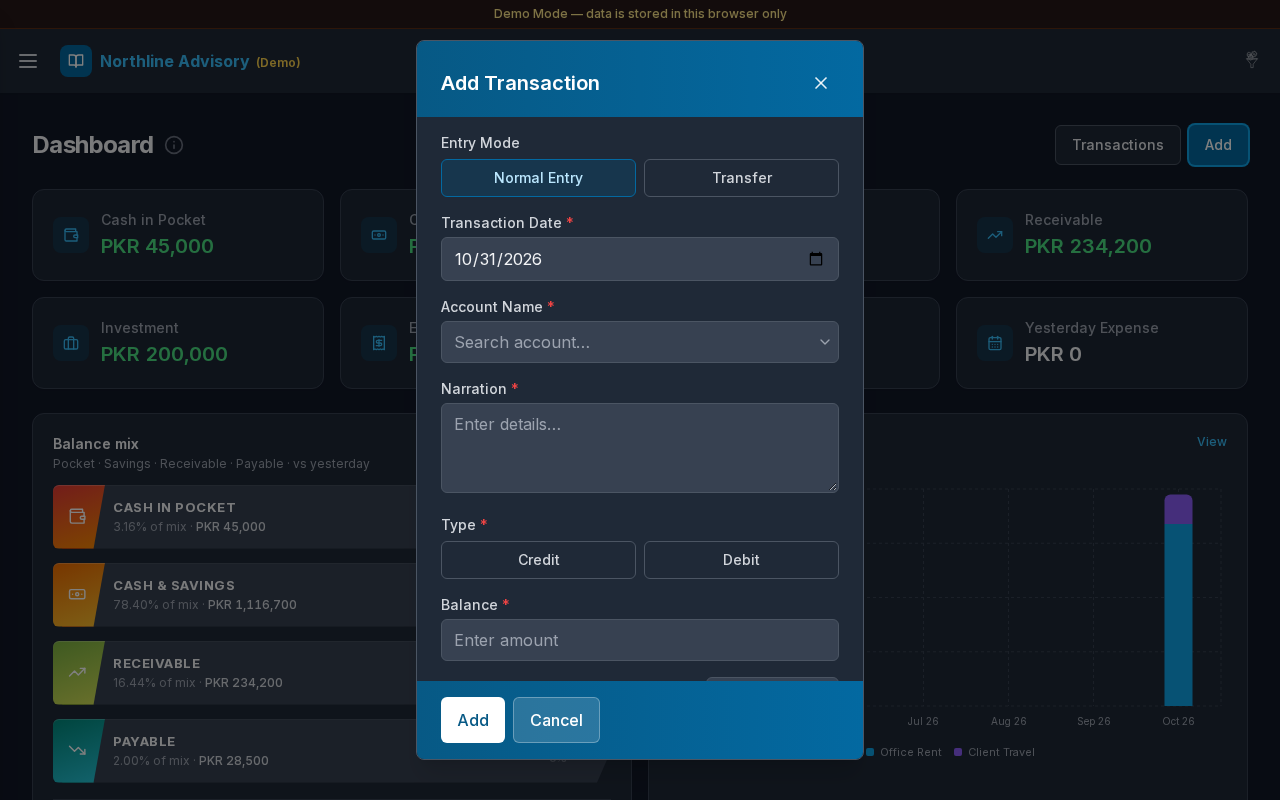
- The Add Transaction modal opens.
- Choose Entry Mode: Normal Entry or Transfer.
- Set Transaction Date.
- For Normal Entry:
- Choose Account Name
- Enter Narration
- Choose Credit or Debit
- Enter Balance (amount)
- Optionally attach files
- For Transfer:
- Choose To Account (In) and From Account (Out)
- Enter Narration and Balance
- Select Add to save, or Cancel to close without saving.
- The dashboard refreshes so KPIs and charts reflect the new entry.
Read Balance Mix
- Each ribbon shows a category total with an icon on the colored strip.
- The day-over-day % compares today’s displayed amount with yesterday (up, down, or no change).
Use the info tip
- Select the info icon next to Dashboard.
- Read: Overview of your books — balances, ledgers, and recent activity.
- Click outside the tip to close it.
KPI cards
| Card | Meaning |
|---|---|
| Cash in Pocket | Pocket / cash-in-hand style accounts |
| Cash & Savings | Accounts matching Settings → Cash & Savings filters |
| Payable | Matching payable accounts with negative balance |
| Receivable | Matching receivable accounts with positive balance |
| Investment | Accounts typed as Invest / Investment |
| Expenses | Expense-type account balances |
| Today Expense | Spend posted for today (opens expense-only journal for today) |
| Yesterday Expense | Spend posted for yesterday (opens expense-only journal for yesterday) |
Add Transaction modal fields
| Field | Required | Notes |
|---|---|---|
| Entry Mode | Yes | Normal Entry or Transfer |
| Transaction Date | Yes | Defaults to today |
| Account Name | Normal mode | Searchable account list |
| To Account (In) / From Account (Out) | Transfer mode | Must be different accounts |
| Narration | Yes | Short description |
| Credit / Debit | Normal mode | Entry type |
| Balance | Yes | Amount (non-negative number) |
| Attachments | No | Optional supporting files |
Errors & edge cases
- Missing date, narration, account, type, or amount: the modal shows a calm validation message (for example Narration is required. or Balance is required.).
- Transfer with the same From and To account: From and To accounts must be different.
- No accounts yet: the form notes that accounts must be added under Accounts first.
- Charts may load slightly after the KPI cards; wait a moment if the chart area still shows a placeholder.
- On mobile, chart axis labels wrap and the hover highlight stays translucent (no solid white flash).